Aged payables
Finovio Users Guide / Reports
What you currently owe suppliers, broken into age buckets.
In this guide
- Where to find it
- How the report is calculated
- Reading the aging buckets
- Reviewing open items
- Filtering and exporting
Where to find it
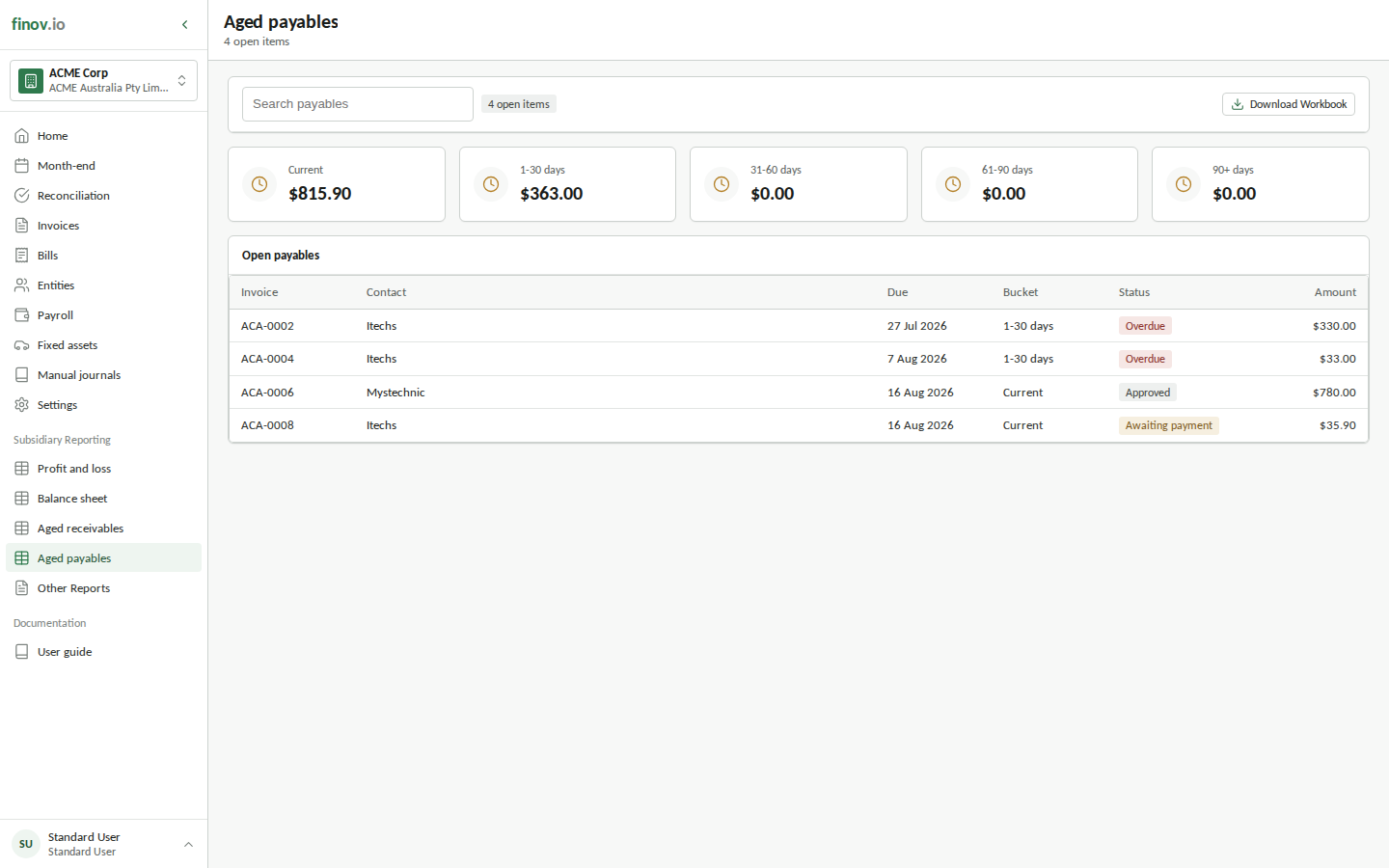
Select Aged payables under Reporting in the sidebar. The report uses the active subsidiary and shows balances as at today.
How the report is calculated
Finovio includes supplier bills and supplier credit notes dated on or before the report date. It starts with each item's gross value and subtracts settlements posted by the end of that date.
The report excludes:
- Draft and void bills.
- Items marked paid.
- Items with no remaining balance.
- Bills dated after the report date.
Supplier credit notes appear as negative open items and reduce the total of their aging bucket. A payment posted after the report date does not change the earlier as-at balance.
Reading the aging buckets
The summary tiles group the remaining balance by due date:
| Bucket | Meaning |
|---|---|
| Current | No due date, or due on or after the report date. |
| 1–30 days | Due 1 to 30 days before the report date. |
| 31–60 days | Due 31 to 60 days before the report date. |
| 61–90 days | Due 61 to 90 days before the report date. |
| 90+ days | Due more than 90 days before the report date. |
Use Current to plan upcoming payments and the older buckets to identify overdue supplier commitments that need attention.
Reviewing open items
Each row shows the bill number, supplier, due date, bucket, status, and outstanding amount.
- Awaiting payment means the bill remains open but is not past due.
- Overdue means the due date is before the report date.
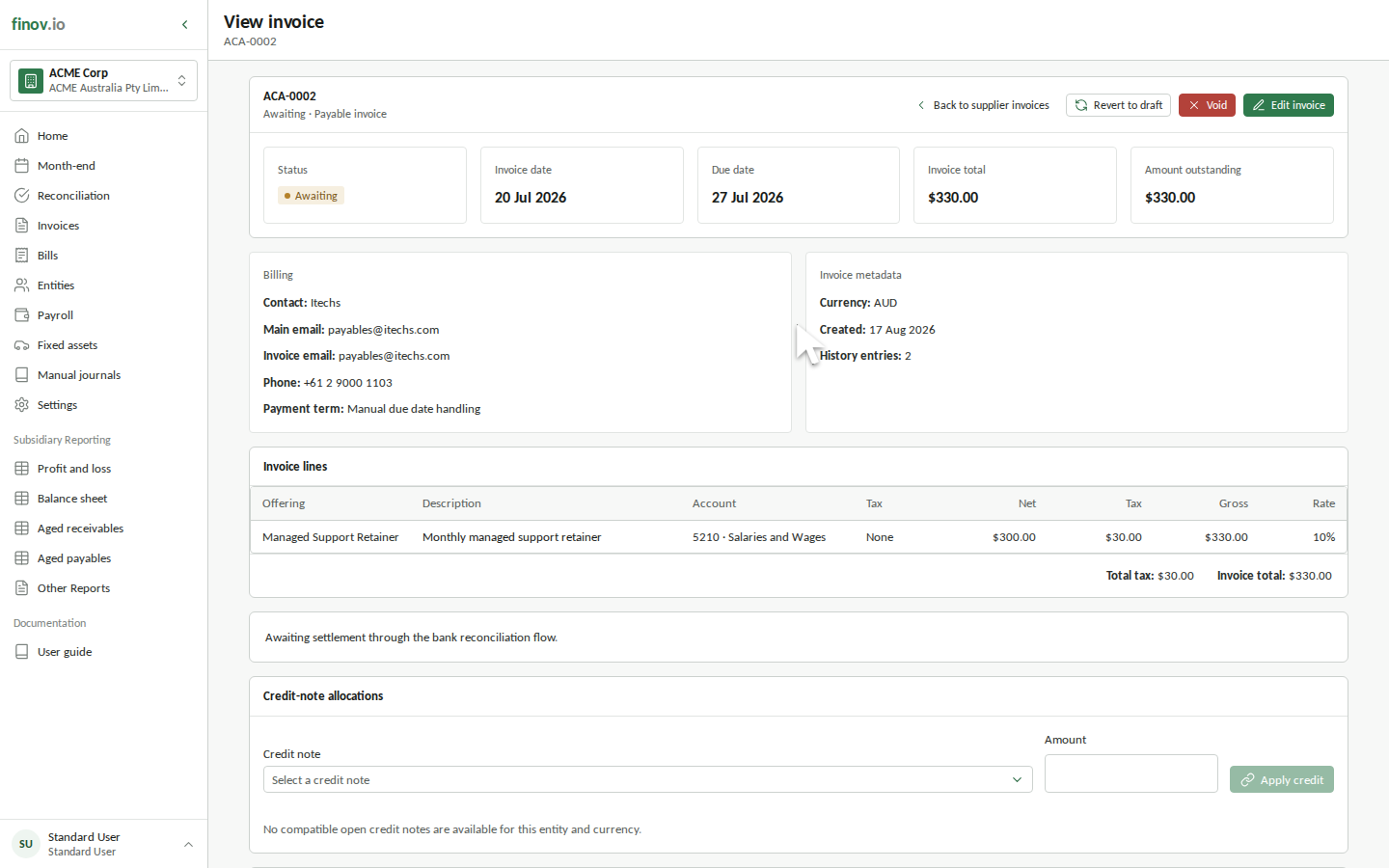
Select a row to open the source bill. Review its dates, supplier, lines, amount paid, amount due, and financial history before scheduling payment or correcting the transaction.
Filtering and exporting
Search by bill number, supplier, status, or bucket. The open-item count and all five summary tiles recalculate from the matching rows, which is useful for isolating overdue bills or one supplier.
Select Download Workbook to export the current filtered view. The workbook includes the report name, subsidiary, as-at date, bucket summary, and bill-level details. Clear the search before downloading when you need the complete report.