Invoice branding
Finovio Users Guide / Company Setup
Invoice branding controls how invoices look and identify your business when sent to customers.
In this guide
- Where to find it
- Open a branding set
- Set the logo
- Configure the document
- Preview generated PDFs
- Use multiple branding sets
Where to find it
Settings → Invoice settings → Invoice branding. Requires STANDARD access to create, edit, or delete.
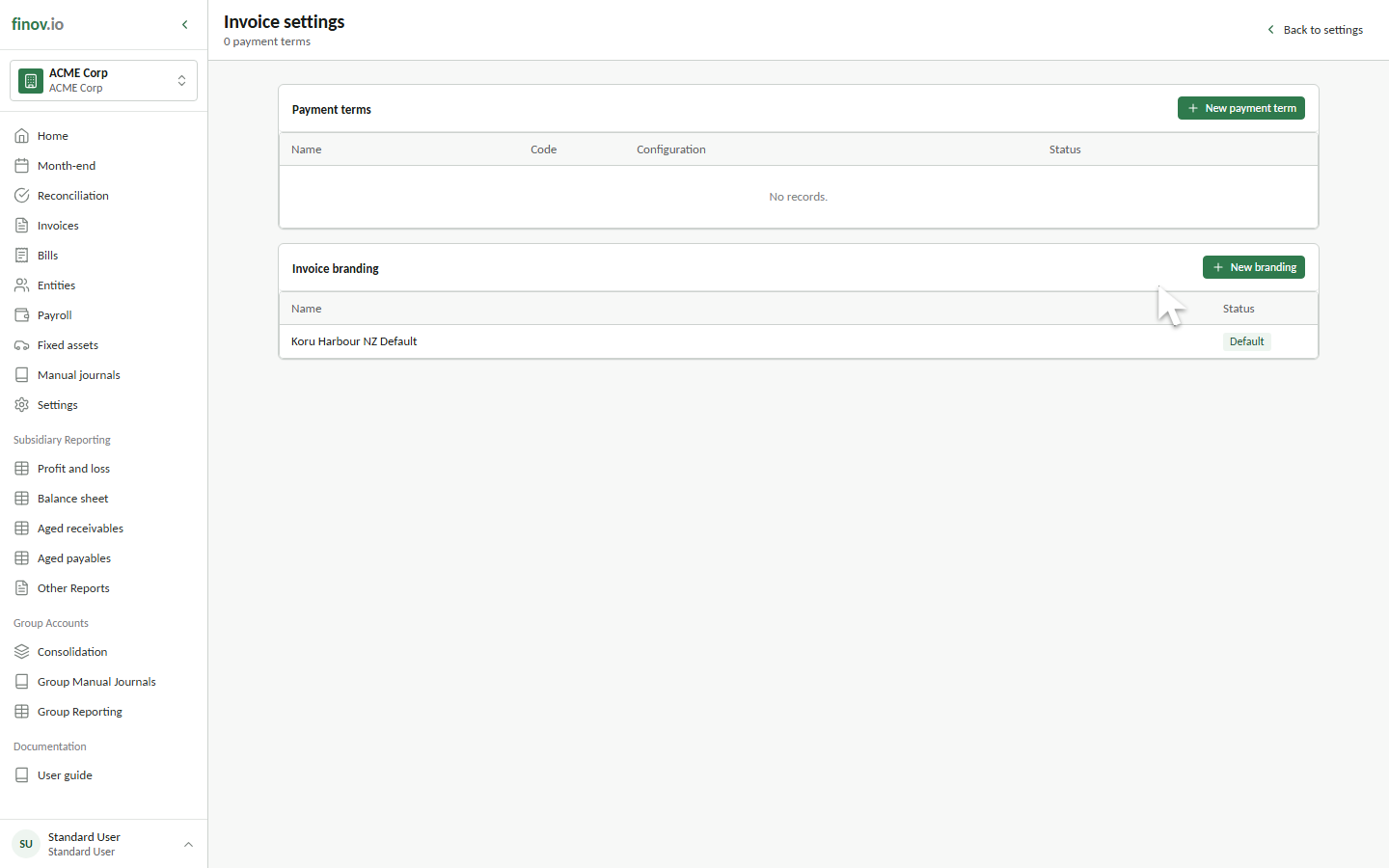
Open a branding set
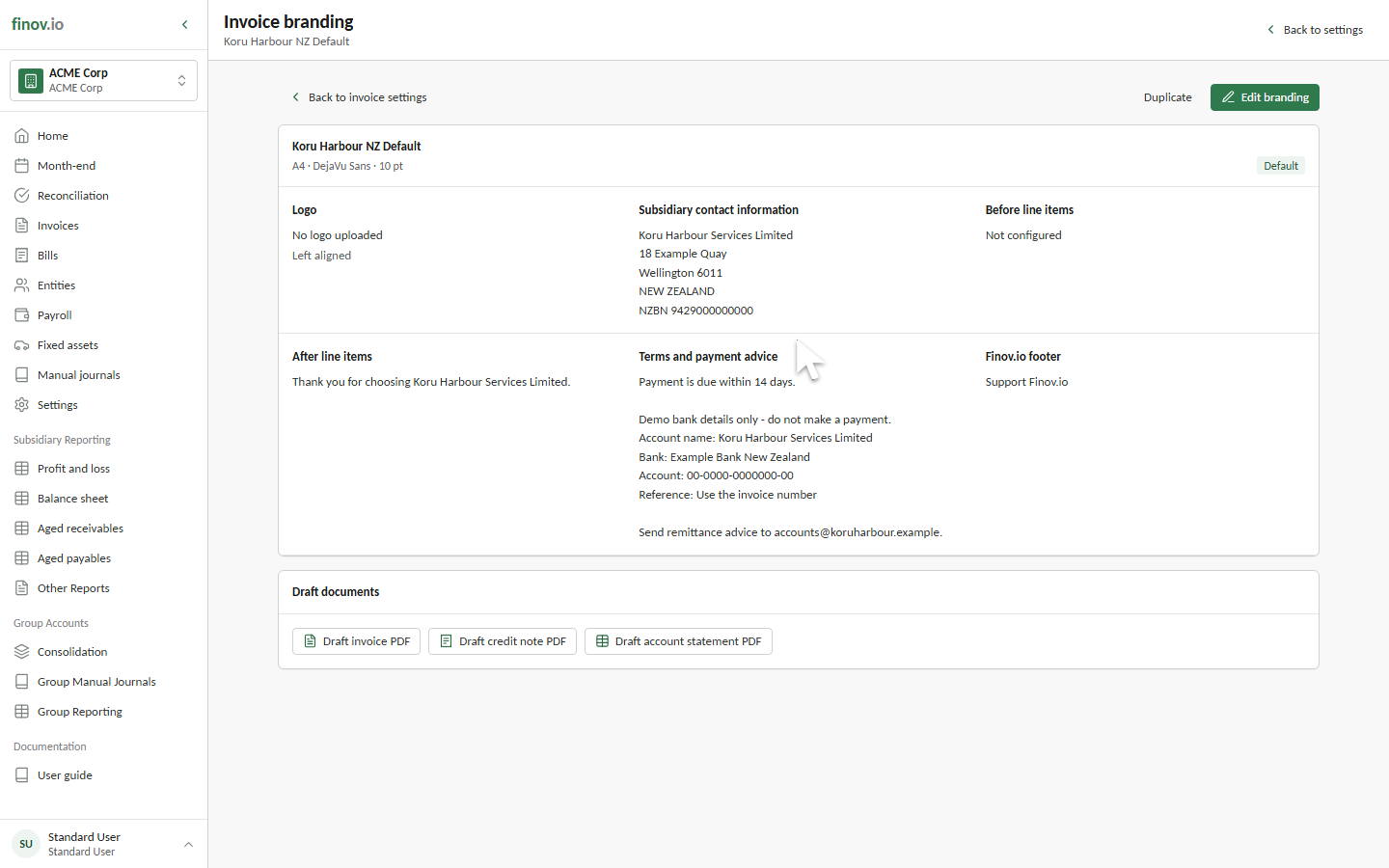
Invoice settings lists the branding sets available to the selected subsidiary. Select a branding set to review its status, page size, font, logo, subsidiary contact information, supporting copy, payment advice, and footer.
Set the logo
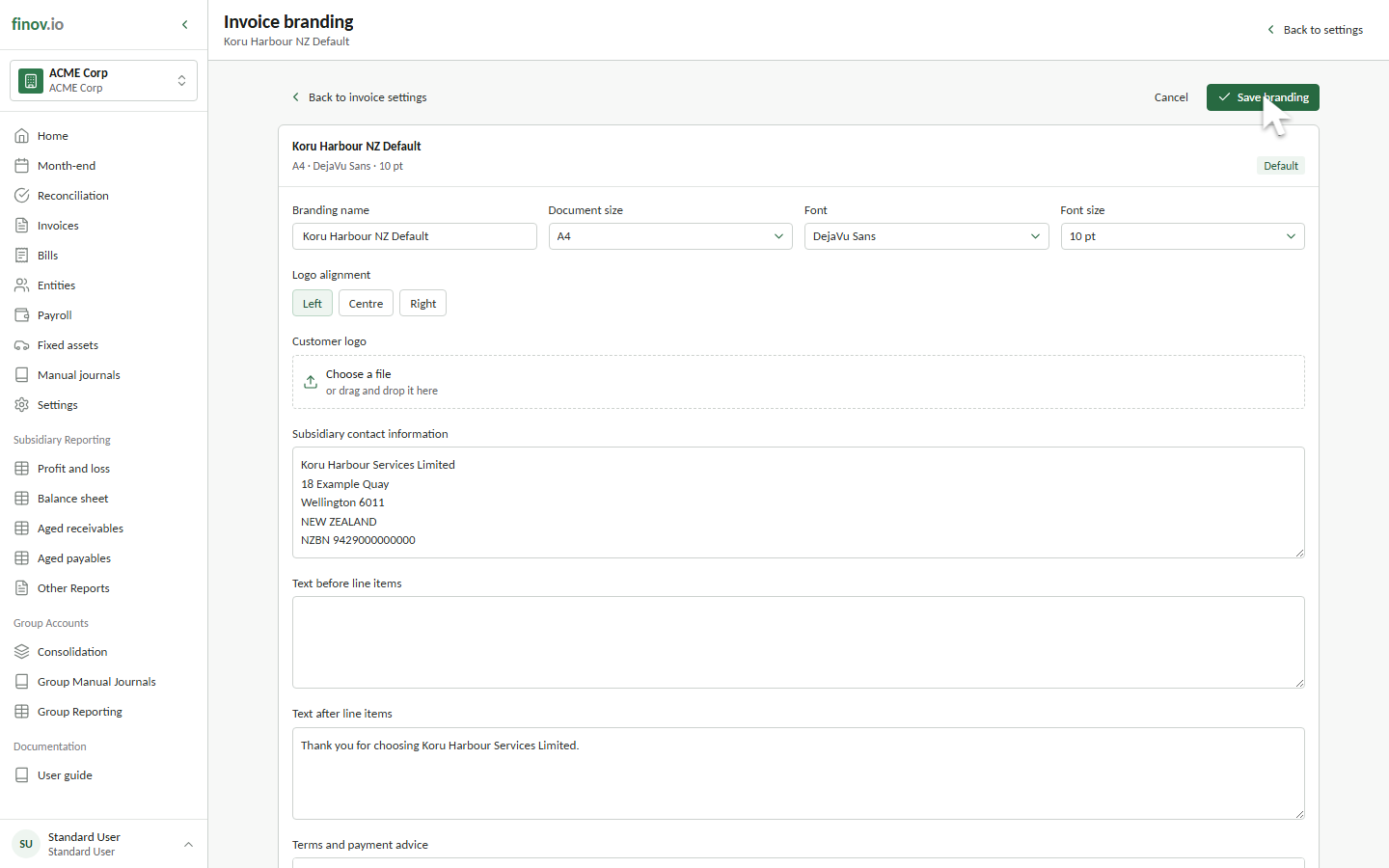
- Open the branding set and select Edit branding.
- Under Customer logo, choose a PNG, JPEG, or WebP image up to 5 MB.
- Select Left, Centre, or Right under Logo alignment.
- Review the image preview.
- Select Save branding.
Uploading a new image replaces the logo for that branding set. A horizontal image with clear space around the artwork usually gives the cleanest result. The logo is included in generated documents only after the branding has been saved.
Configure the document
A branding set controls:
- A4 or US Letter page size.
- Font family and size.
- Subsidiary contact information.
- Text before the line items and after the total.
- Terms and payment advice.
- Whether the Finovio footer is shown.
- Whether the set is active and available for use.
Preview generated PDFs
From the branding detail, select Draft invoice PDF to open a generated sample using the saved settings. Check the logo, contact details, line-item layout, totals, payment instructions, and footer before using the branding set on customer invoices.
You can also preview a draft credit note or account statement from the same page. These previews use sample values and do not create accounting records.
Use multiple branding sets
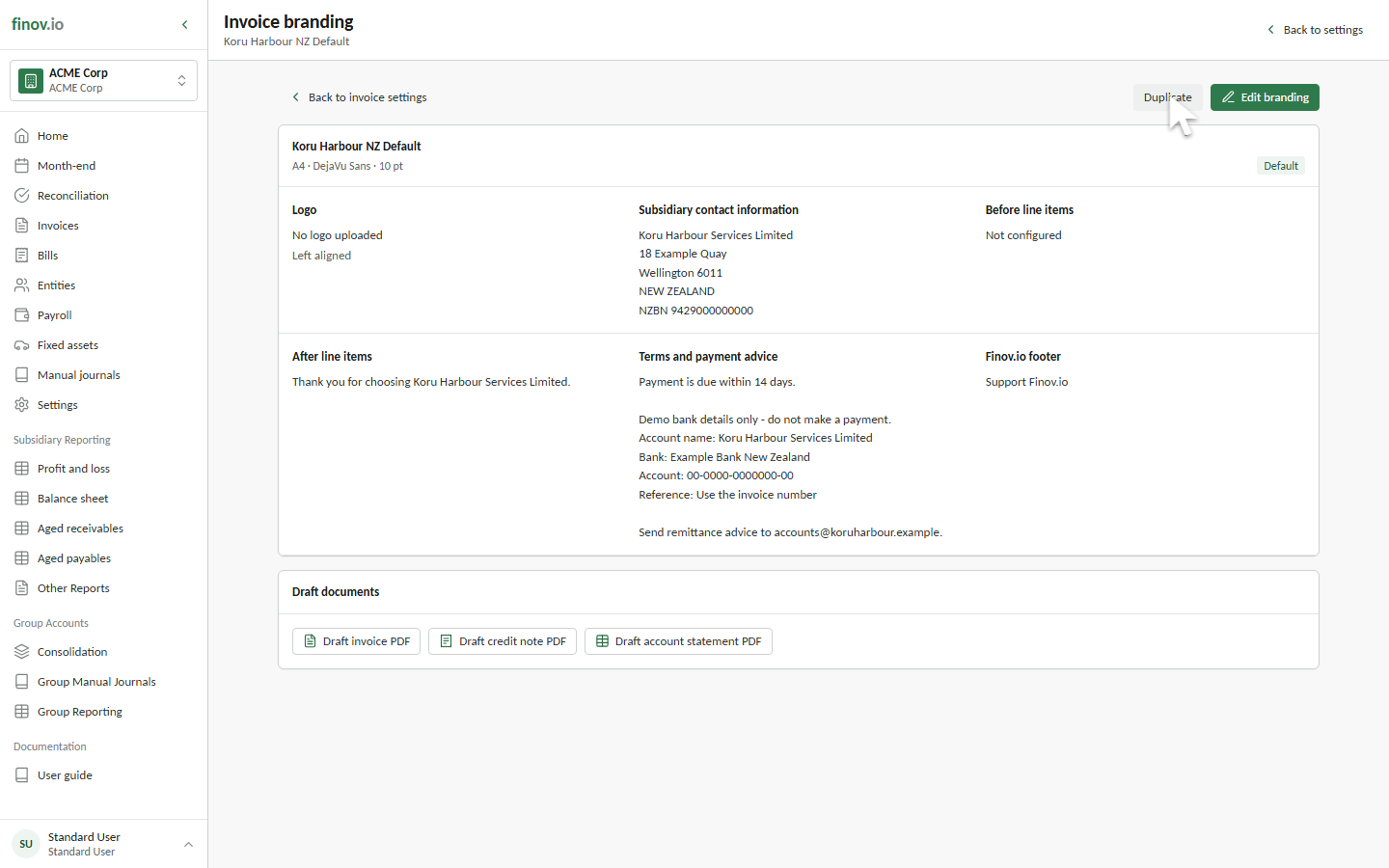
You can maintain more than one branding set when a subsidiary trades under different brands or needs different customer-facing layouts. Choose the appropriate active branding set when creating a sales invoice.