Bank accounts
Finovio Users Guide / Company Setup
Every bank account you reconcile against in Finovio needs to be set up here first, linked to a general ledger account.
In this guide
- Where to find it
- Adding a bank account
- Linking to the general ledger
- Default dimension coding
- Connecting a bank feed
- Managing bank feed consent
- Importing statements in batches
Where to find it
Settings → Bank accounts. Requires STANDARD access to add, edit, or delete.
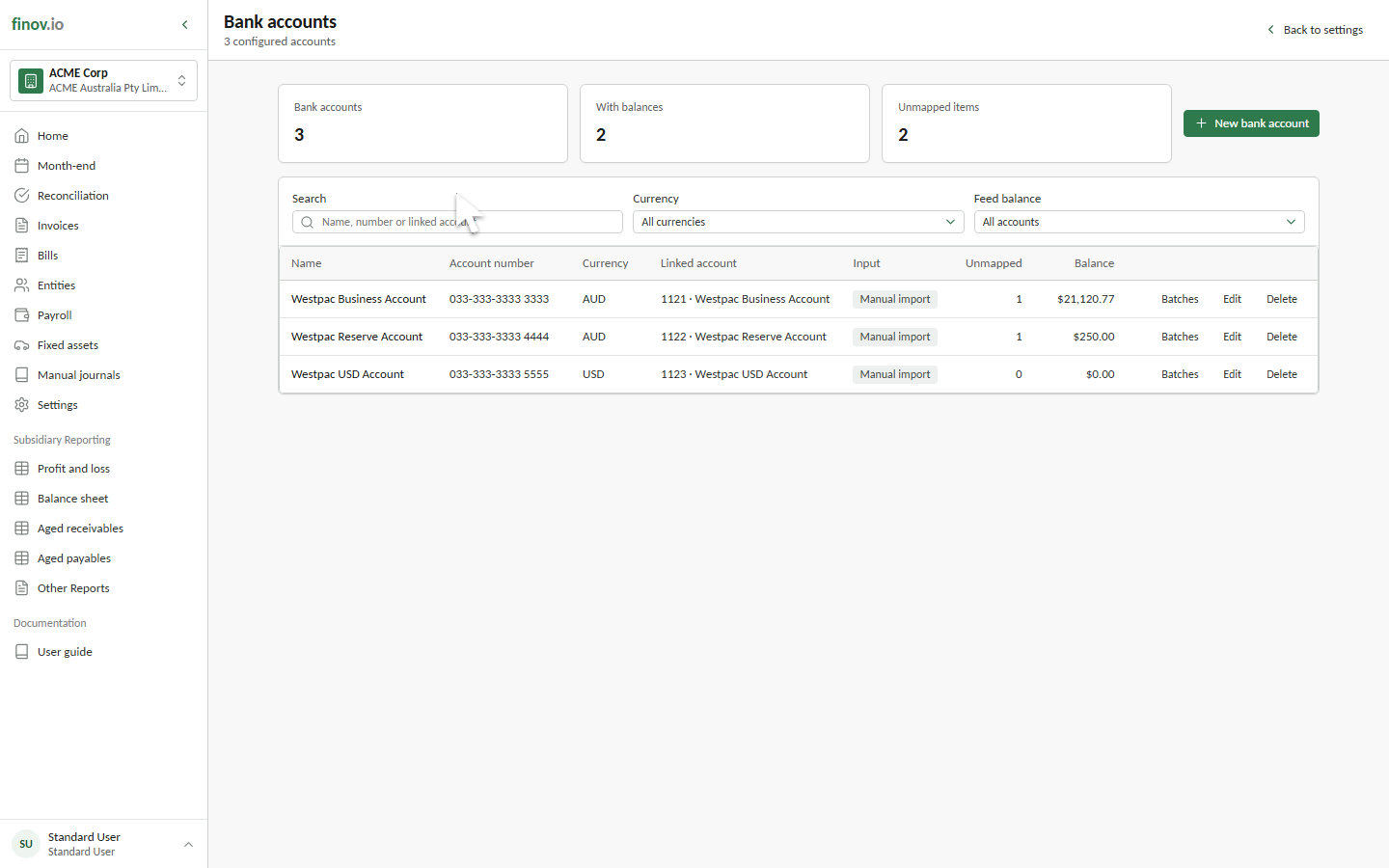
Adding a bank account
Give the account a name and account number for identification, and link it to a general ledger account in the BANK category. That linked account is what every reconciliation on this bank account posts to.
Linking to the general ledger
The bank-side leg of every reconciliation journal always uses this linked account; you don't choose it per transaction. If you need to change which GL account a bank account posts to, do it here, not per transaction.
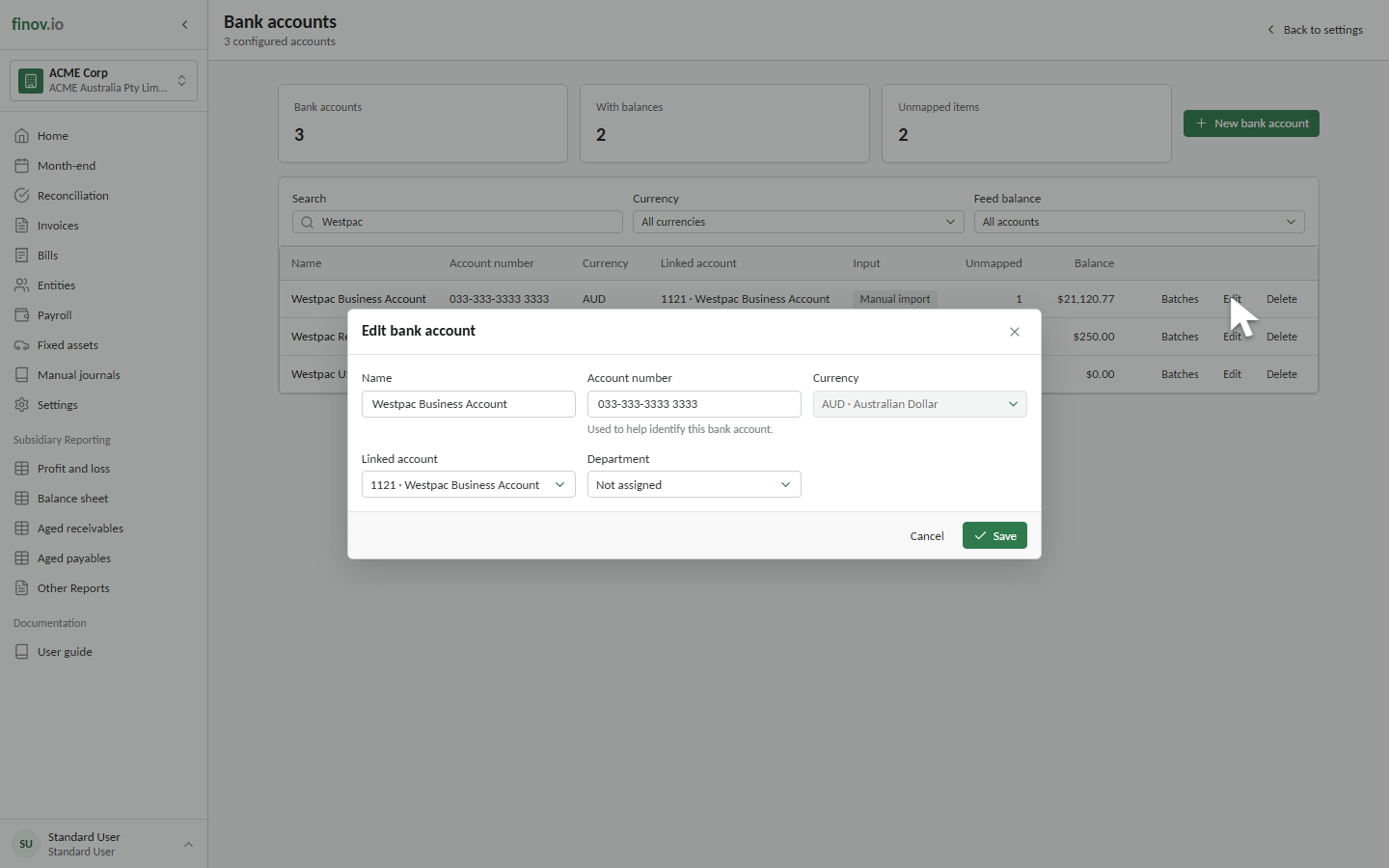
Default dimension coding
Assign an active element in any configured dimension slot when transactions from this account normally belong to the same property, project, branch, department, or other reporting unit. Finovio applies the bank-account value to generated reconciliation journal lines only when that slot has not already been assigned.
A dimension supplied by a reconciliation rule or selected on the transaction takes precedence over the bank-account default. This provides efficient routine coding without preventing a more specific classification for an exception.
Connecting a bank feed
From Settings → Bank accounts, select Bank feed beside the account you want to connect. Choose the bank and the first date Finovio should import, then continue to Basiq to review and approve access.
After approving access, Basiq returns you to the same bank account in Finovio. Select the account provided by your bank and confirm the connection. New transactions are then imported into daily batches without changing transactions already entered in Finovio.
Managing bank feed consent
Open Settings → Bank accounts, select Bank feed beside the connected account, then select Manage consent. Finovio opens Basiq's secure consent screen, where you can review the data being shared, remove a bank connection, or revoke consent.
To stop using the feed in Finovio, select Reset setup in the bank-feed window. Resetting removes the feed configuration and stops future imports. Existing bank transaction batches, reconciliations, and accounting history remain unchanged.
You can also revoke access from your bank's Open Banking or data-sharing settings. The wording and location vary by bank. After revoking access at Basiq or your bank, reset the setup in Finovio before connecting the account again.
Importing statements in batches
Bank transactions arrive as batches, a set of transactions imported together, typically from a statement file.