User roles and permissions
Finovio Users Guide / Getting Started
Access in Finovio is role-based. Each user has one role for a company group, and that role applies to every subsidiary in the group.
In this guide
- How roles work
- Choosing a role
- Managing users
- Inviting a user
- Changing or removing access
- Restricting subsidiary access
- Access matrix
How roles work
Your role is assigned per group, not per subsidiary. Switching subsidiaries does not change what you can do. Access remains subject to the selected group and subsidiary, transaction status, write locks, and accounting date locks.
Finovio provides four roles:
- Admin: full access, including Standard User actions and sensitive configuration.
- Standard User: day-to-day accounting, record maintenance, posting, and reconciliation.
- Read-Only User: can review accounting records and download supporting files, but cannot make changes.
- Reporting User: can run and export reports without browsing operational records through their direct pages.
Choosing a role
Give each person the least access they need:
- Choose Admin for the people responsible for the company group, subsidiaries, report configuration, and user access.
- Choose Standard User for bookkeepers and accountants who maintain records and post transactions.
- Choose Read-Only User for reviewers who need operational detail but must not change it.
- Choose Reporting User for executives and other report consumers who do not need transaction-level workspaces.
Only Admin users can open the Users page and manage access for the selected group.
Managing users
Open the user menu at the bottom of the sidebar and select Users. The page lists active users and pending invitations for the currently selected company group.
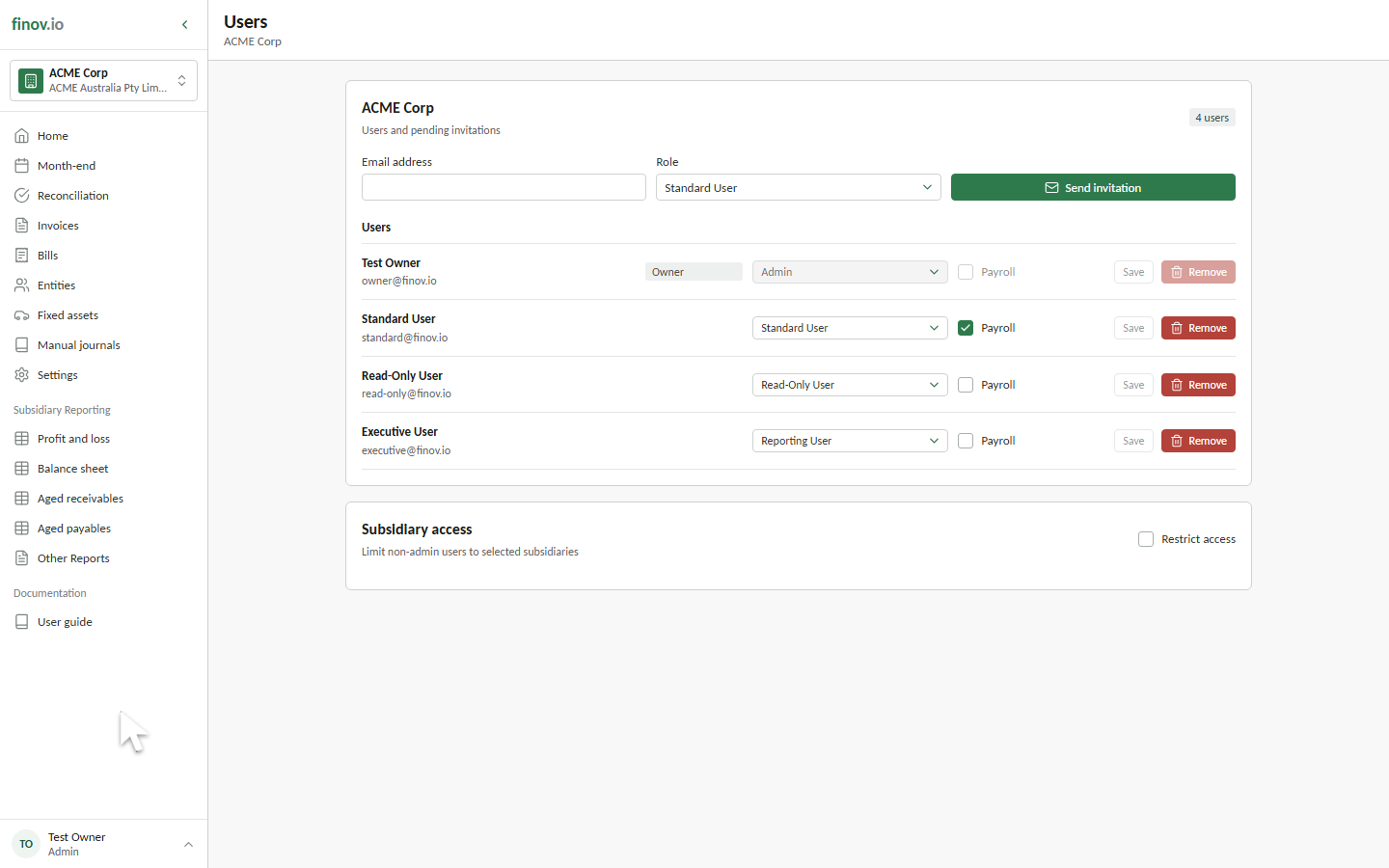
The group owner is always an Admin. Finovio prevents changes that would remove the protected owner access or leave the group without an administrator.
Inviting a user
- Enter the person's email address.
- Select the role they need.
- Select Send invitation.
The invitation remains pending until it is accepted by a signed-in user with the same email address. Invitations expire after seven days. Cancel an invitation if it was sent to the wrong address or is no longer needed; sending a replacement invitation to the same address revokes the earlier one.
Changing or removing access
To change an active user's role, select the new role beside their name and then select Save. Their new permissions apply wherever they have subsidiary access.
Select Remove to revoke the user's access to the group. You cannot change or remove your own access from this page, and protected owner access cannot be removed.
Restricting subsidiary access
Subsidiary access is unrestricted by default. In this mode, every group member can open every subsidiary, subject to their role permissions.
Turn on Restrict access under Subsidiary access to show the access matrix. Select the subsidiaries each non-admin user can open, then select Save access to save the whole matrix. A user without any selected subsidiaries cannot open accounting data for the group while restriction is enabled.
Admin users always have access to every subsidiary and do not appear in the matrix. Turning off Restrict access restores access to every subsidiary without removing the saved assignments.
Access matrix
Yes grants the action and No denies it. Read includes listing, searching, viewing, and history unless stated otherwise. Write includes creating and updating. Delete includes archive, remove, restore, rollback, and similar lifecycle reversals.
Company group and reporting
| Object | Action | Admin | Standard | Read-only | Reporting |
|---|---|---|---|---|---|
| Group settings | Read | Yes | Yes | Yes | No |
| Group settings | Update | Yes | No | No | No |
| Reference information | Read currencies, countries, statuses, sources, types, and categories | Yes | Yes | Yes | Yes |
| Subsidiaries | List and read | Yes | Yes | Yes | Yes |
| Subsidiaries | Create, update, or delete | Yes | No | No | No |
| Financial reports | Run and view | Yes | Yes | Yes | Yes |
| Financial reports | Export and open statement drilldowns | Yes | Yes | Yes | Yes |
| Report settings | Update export limits and report configuration | Yes | No | No | No |
| Supporting files | Download or obtain a signed download link | Yes | Yes | Yes | No |
| Supporting files | Upload or obtain a signed upload link | Yes | Yes | No | No |
Standing data
| Object | Action | Admin | Standard | Read-only | Reporting |
|---|---|---|---|---|---|
| Chart of accounts | Read and search | Yes | Yes | Yes | No |
| Chart of accounts | Create, update, or delete | Yes | Yes | No | No |
| Tax codes | Read and search | Yes | Yes | Yes | No |
| Tax codes | Create, update, or delete | Yes | Yes | No | No |
| Dimensions and elements | Read and search | Yes | Yes | Yes | No |
| Dimensions and elements | Create, update, or delete | Yes | Yes | No | No |
| Entities | Read and search | Yes | Yes | Yes | No |
| Entities | Create, update, archive, or restore | Yes | Yes | No | No |
| Contacts | Read and search | Yes | Yes | Yes | No |
| Contacts | Create, update, or delete | Yes | Yes | No | No |
| Payment terms | Read | Yes | Yes | Yes | No |
| Payment terms | Create, update, or delete | Yes | Yes | No | No |
| Invoice branding | Read | Yes | Yes | Yes | No |
| Invoice branding | Create, update, or delete | Yes | Yes | No | No |
| Offerings | Read | Yes | Yes | Yes | No |
| Rulesets | Read | Yes | Yes | Yes | No |
| Rulesets | Create, update, or delete | Yes | Yes | No | No |
| Fixed asset types | Read | Yes | Yes | Yes | No |
| Fixed asset types | Create or update | Yes | Yes | No | No |
Accounting records and processes
| Object | Action | Admin | Standard | Read-only | Reporting |
|---|---|---|---|---|---|
| Invoices | Read | Yes | Yes | Yes | No |
| Invoices | Create, update, or delete | Yes | Yes | No | No |
| Posted journals | Read, including history and source detail | Yes | Yes | Yes | No |
| Posted journals | Create, amend permitted details, unreconcile, or remove and redo | Yes | Yes | No | No |
| Manual journals | Read | Yes | Yes | Yes | No |
| Manual journals | Create, update, delete, or post | Yes | Yes | No | No |
| Bank accounts | Read | Yes | Yes | Yes | No |
| Bank accounts | Create, update, or delete | Yes | Yes | No | No |
| Bank batches and transactions | Read | Yes | Yes | Yes | No |
| Bank batches and transactions | Import, update notes, map, reconcile, unmap, or delete | Yes | Yes | No | No |
| Fixed assets | Read assets, files, events, and depreciation runs | Yes | Yes | Yes | No |
| Fixed assets | Create, update, register, suspend, resume, adjust, or dispose | Yes | Yes | No | No |
| Fixed asset files | Attach or remove | Yes | Yes | No | No |
| Depreciation runs | Preview, run, or rollback | Yes | Yes | No | No |