Creating a manual journal
Finovio Users Guide / Manual Journals
A manual journal records an adjustment that Finovio cannot derive from an invoice, bank transaction, fixed asset, or another source workflow. Common uses include accruals, provisions, reclassifications, opening adjustments, and corrections.
In this guide
- Where to find it
- Entering a journal manually
- Worked example: expense accrual
- Importing from a workbook
- Saving the draft
Where to find it
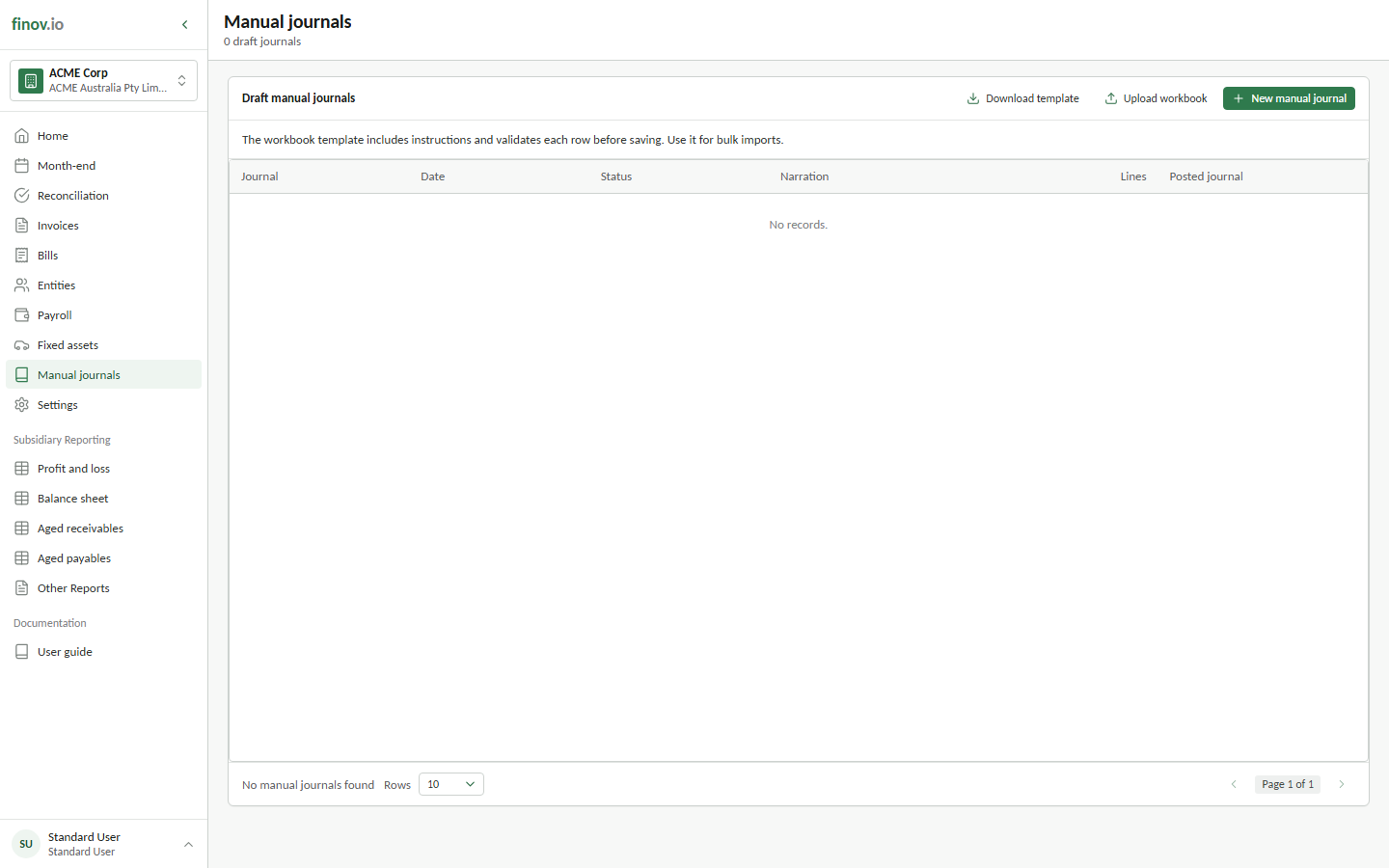
Manual journals → New manual journal.
Entering a journal manually
- Select New manual journal.
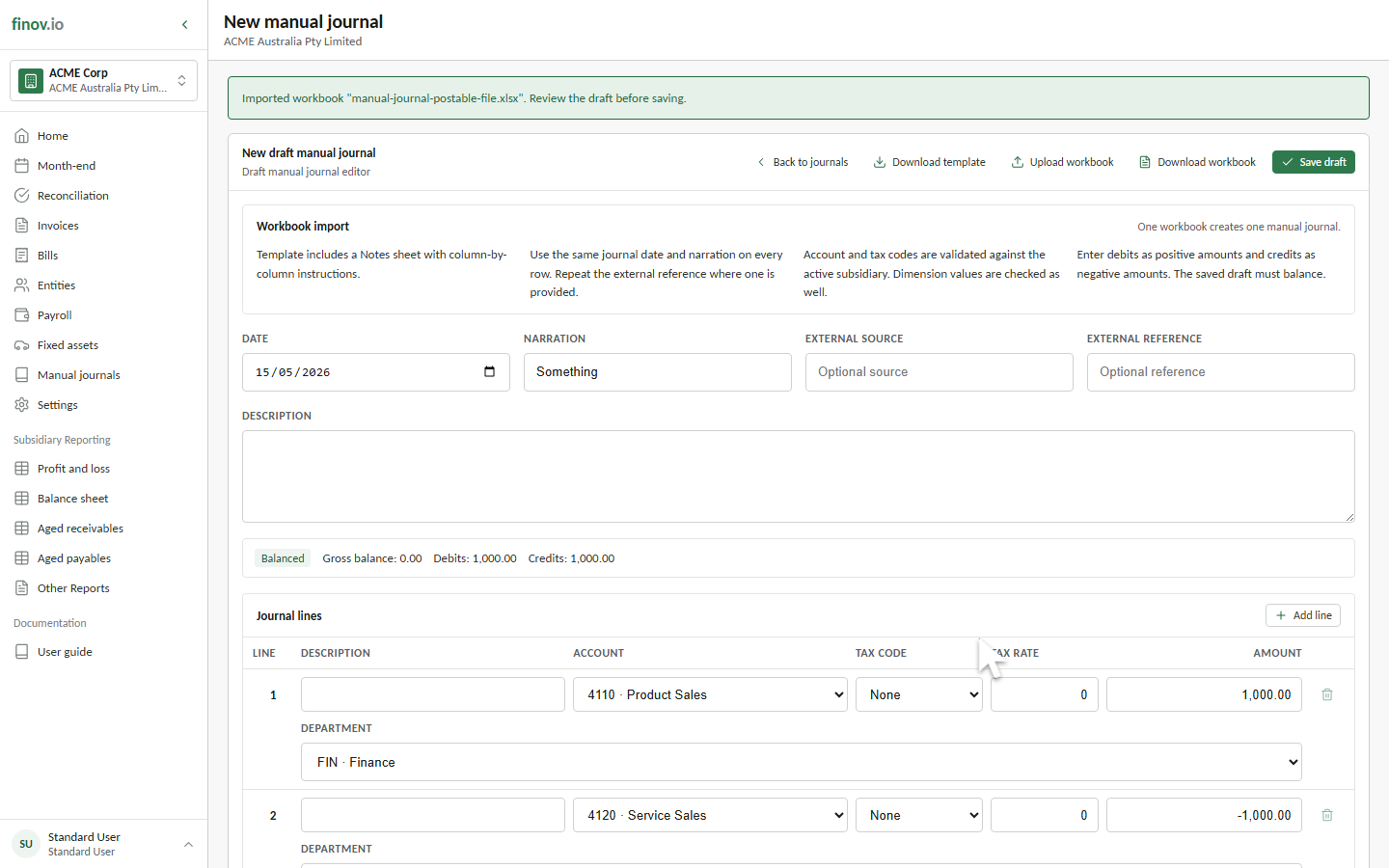
- Enter the Date and Narration. The date applies to every line and becomes the ledger posting date.
- Add an optional description, external source, or external reference when it helps connect the adjustment to supporting workpapers.
- Enter at least two journal lines. Select an active posting account, enter an optional line description, select the tax treatment, and assign any required dimensions.
- Enter debit amounts as positive values and credit amounts as negative values.
- Confirm the summary shows Balanced and a gross balance of zero.
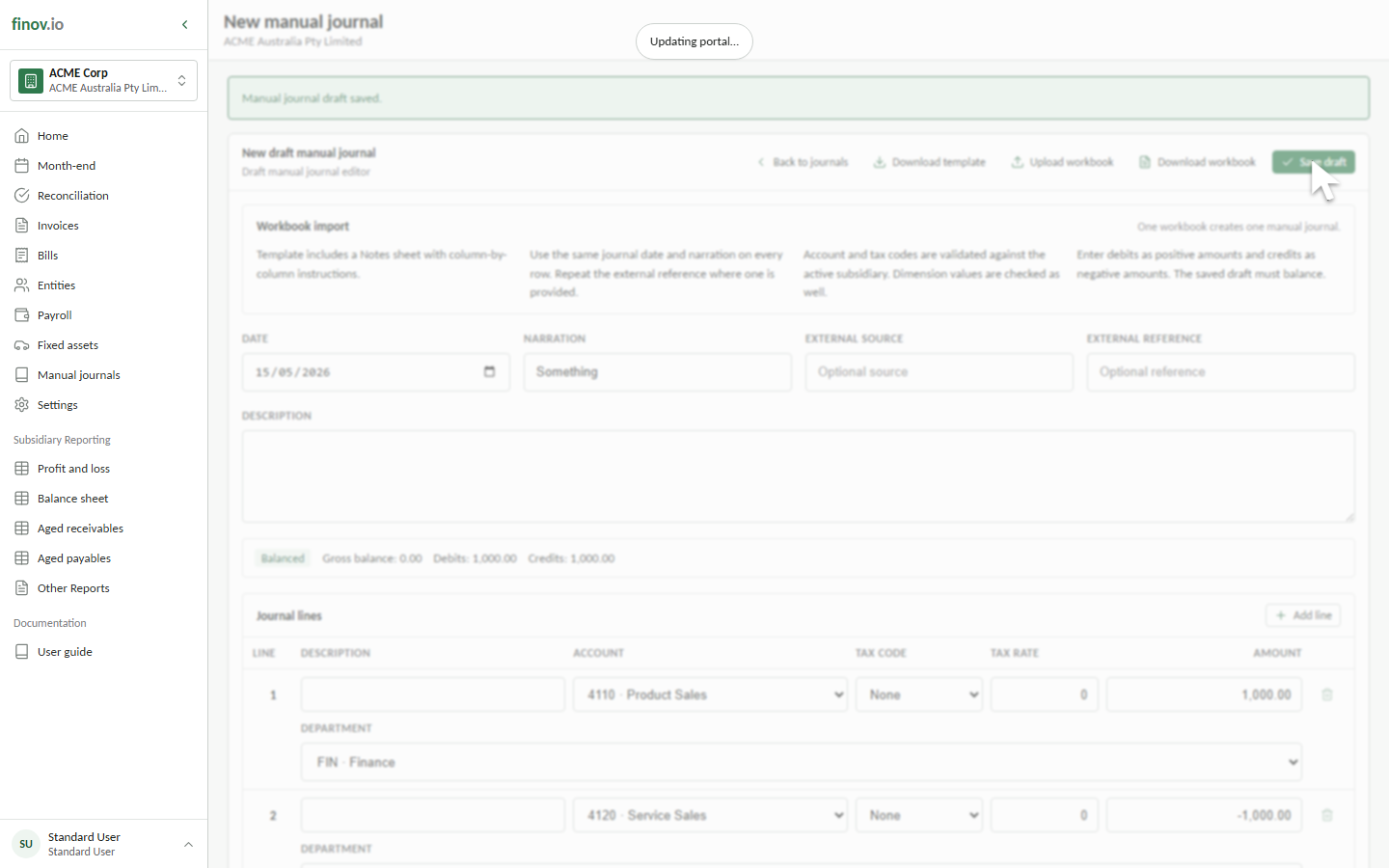
- Select Save draft.
Worked example: expense accrual
To recognize £2,300 of audit work before the supplier invoice arrives:
| Line | Account | Amount | Effect |
|---|---|---|---|
| 1 | Audit fee expense | 2,300.00 |
Debit expense |
| 2 | Accrued expenses | -2,300.00 |
Credit liability |
Use a narration such as July audit fee accrual and the final day of July as the journal date. Select the zero-rated tax treatment when no indirect tax is recognized on the accrual.
Importing from a workbook
Use workbook import when the journal has many lines or has been prepared outside Finovio:
- Select Download template to obtain the current subsidiary-specific columns and instructions.
- Enter one journal line per row on the Manual Journals sheet.
- Repeat the same narration, date, and external reference on every row belonging to the same journal.
- Select Upload workbook, then Choose file.
- Choose Single manual journal to load all rows into the editor, or Multiple manual journals to split the rows by date or narration.
- Review the validation result, then load the single draft or create the validated drafts.
The supplied posting example reclassifies £1,000 from Product Sales (4110) to Service Sales (4120) for the Finance department (FIN). Its positive 1,000 line debits Product Sales, and its negative -1,000 line credits Service Sales.
Saving the draft
Saving creates a numbered manual journal with Draft status. Nothing has posted to the general ledger yet. Open the draft to edit, download, delete, or post it.