Credit notes
Finovio User Guide / Invoices and Bills
A credit note reduces an amount owed on a customer invoice or supplier bill while preserving the original document and its accounting history.
In this guide
- Customer and supplier credit notes
- Creating a credit note
- Posting the credit
- Applying it to an invoice or bill
- Changing an allocation
Customer and supplier credit notes
Use Invoices for customer documents. A customer credit note reverses some or all of a sale and reduces accounts receivable.
Use Bills for supplier documents. A supplier credit note records credit received from a supplier and reduces accounts payable.
Keep the credit note on the same side as the document it corrects. A customer credit note cannot be applied to a supplier bill, and a supplier credit note cannot be applied to a customer invoice.
Creating a credit note
Open Invoices or Bills, select the arrow beside New, then select Credit Note. Choose the same entity and currency as the document being credited. Enter positive line amounts for the value of the credit; the credit-note type determines the reversing accounting direction.
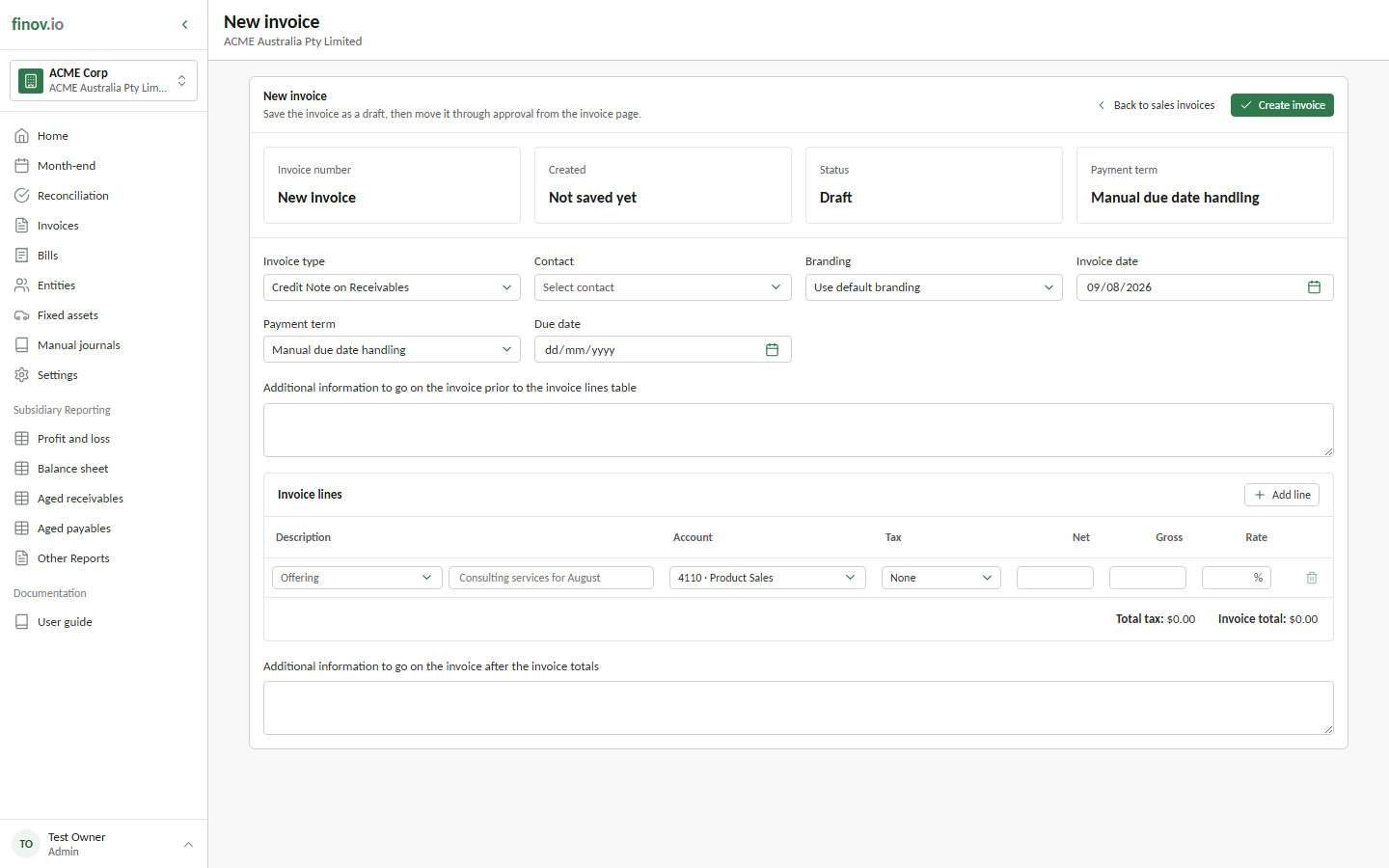
Use the original revenue, expense, asset, and tax treatment where appropriate so the credit reverses the intended part of the original transaction. Save it as a draft while it is being checked.
Posting the credit
Move the credit note to Awaiting payment when it is ready to post. Posting creates its reversing invoice journal and makes its unused balance available to compatible invoices or bills.
A posted credit note also appears as a negative open item in aged receivables or aged payables until it is allocated.
Applying it to an invoice or bill
Open the posted customer invoice or supplier bill, then find Credit-note allocations. Select a compatible credit note, enter the amount to use, and select Apply credit.
Finovio only offers open credit notes for the same subsidiary, entity, invoice side, and currency. The amount cannot exceed either document's remaining balance.
Applying a credit reduces the outstanding balances of both documents. It does not create another journal: the invoice and credit note already recorded their accounting effects when they were posted. Fully allocated documents move to Paid; partially allocated documents remain Awaiting payment with their residual balance.
Changing an allocation
Select Remove beside an allocation before correcting it or applying the credit elsewhere. Financial fields on either document are locked while payments or credit-note allocations are attached, so remove those links before changing dates, contacts, amounts, tax, or lines.